
You didn’t stop using AI because it’s bad. You stopped because it waits for you. A blank box doesn’t remind you, doesn’t start the work, and doesn’t care that it’s Thursday.
Here’s the pattern. You sign up, you try it a few times, it’s helpful, and then the week gets busy and you never open it again. This post explains why that happens, gives you a simple way to make one job stick, and shows how to set it up so the work shows up without you asking.
Why do I keep paying for AI I never open?
Because using it takes three steps every time. You have to remember it exists. You have to decide what to ask. You have to type it. None of those steps is hard, but all three are yours, and they compete with everything else on your day.
That’s what makes most AI tools reactive. They sit idle between prompts. Proton’s guide to proactive AI puts it plainly: a reactive assistant is something you operate, while a proactive one watches for a trigger and acts on your behalf. The first depends on your memory. The second doesn’t.
What are the real reasons AI doesn’t stick?
Five common ones.
- No trigger. Nothing starts the work. You do, or it doesn’t happen.
- No job. “Use AI more” isn’t a task. “Summarize my day every morning” is.
- No context. You re-explain who you are and what you’re working on every time.
- No boundary. You don’t know what it will do on its own, so you don’t trust it with real work.
- Too big a first try. You start with something that takes an hour to check, and give up.
Notice that none of these is about how smart the AI is.
How do I make AI stick? Four steps
- Pick one recurring job. Something you do every day or every week and don’t love. A morning summary. A first pass on email. A Friday check.
- Give it a trigger. A time of day, or an event like a new email.
- Set the boundary. Decide what it can do on its own and what comes back to you. When in doubt, the output is a draft or a brief you read.
- Check on Friday. Look at what finished without you, what needed your judgment, and whether anything useful moved. If not, change the job, not your willpower.
Here are three starter instructions. Swap the brackets for your own details.
Write a brief of what is due today, what is on my calendar and anything that needs my attention.
Star the email if it’s from [client name or company domain]. Draft a reply for review without sending it.
Write a brief of what I finished this week, what is still open and what I should handle first on Monday.
Write the instruction once, pick a time or a trigger, and your AI team runs it. You read what comes back.
How does this work in Operly?
In Operly, this is a routine: a job you write as a sentence, with a trigger. You name it, write the instruction and pick when it runs. For a schedule, you choose the frequency and the time. A new email is the other common trigger, and the inbox zero post shows that one.
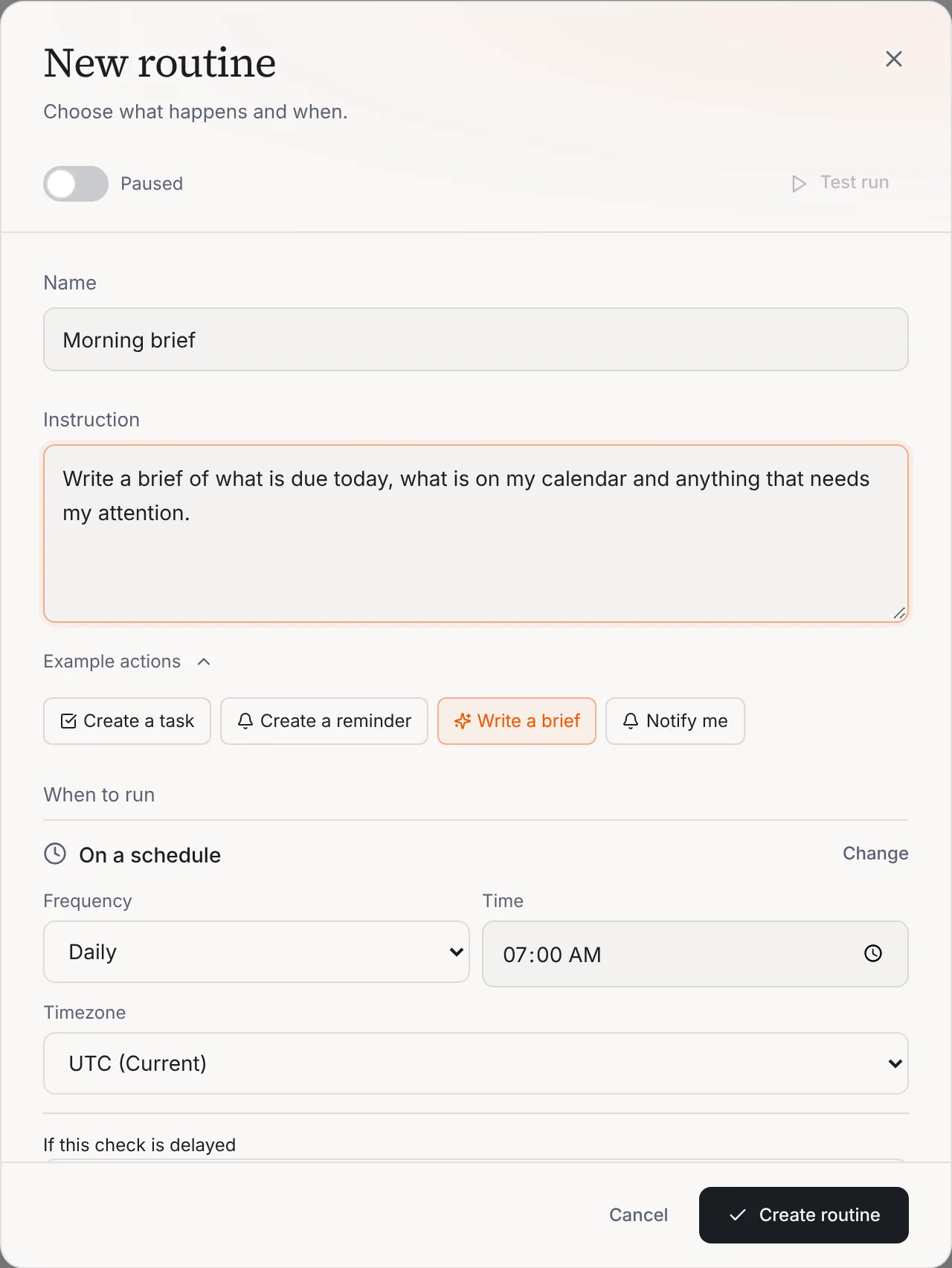
Operly’s Morning Briefing is built this way. It’s a routine template that runs daily at 7:00 in your workspace timezone, so the brief is waiting when you open the app. New to Operly? Start with how to connect Gmail and Google Calendar.
Is it safe to let AI act on its own?
Fair question, and a good one to ask before you turn anything on. Proton’s guide makes the case that proactive AI needs wide access to your accounts and can take actions you didn’t expect. So start small. Begin with jobs where the result is a brief or a draft, like the three above. When a routine drafts a reply, it’s a draft: drafts your team writes in the background wait in Email, then Approvals. They wait there until you click Send Reply. Your team carries out the sends you ask for, so ask for drafts when you want to read first.
Keep the decisions that carry your name, your money or your relationships. That part doesn’t get delegated, and it shouldn’t.
What should I check on Friday?
Three questions, five minutes.
- What finished without me? That’s the proof the trigger works.
- What needed my judgment? That’s what stays yours.
- Did anything useful actually move? If not, change the job: a smaller one, a clearer sentence, a better time.
If the answers are good, add a second job next week. If not, you’ve lost five minutes, not another subscription.
Your next step
Pick one job. Write one sentence. Give it a time. Then see what’s waiting for you tomorrow morning. When you’re ready for more, see how routines work, or read about AI for your inbox.
Comparing AI tools before you try again? See how Operly compares with ChatGPT and Claude.

We build Operly, an AI team for business owners. Your chief of staff hands the work to team members who follow up, draft and organize, and you keep the decisions. About Operly · Watch the demo