
Inbox zero isn’t an empty inbox. It’s an inbox where every message already has a decision. That’s why a big cleanup on Saturday never lasts, and it’s also why AI can finally help.
Here’s the pattern. You spend a weekend getting to zero. By Wednesday it’s back, because every new message arrives with no decision attached. This post gives you a simple way to decide once for each kind of email, three plain-English instructions to copy, and a look at how an AI team handles the first pass while you make the calls that matter.
What does inbox zero actually mean?
Zero isn’t the number of emails. It’s the number of messages you haven’t decided about. Every email gets one decision when it shows up: answer it, turn it into a task, file it, or get rid of it. The idea comes from Merlin Mann, and the guides you’ll find today all agree on the heart of it: stop reading your inbox top to bottom and start processing it.
That’s the part AI is good at, because the first decision on most email is routine.
Why doesn’t inbox zero stick?
Let’s be real: it’s not a willpower problem. It’s a few predictable traps.
- The volume never stops. You clear it, and it fills again.
- Checking isn’t processing. Opening a message and closing it again counts as a look, not a decision. Do that a few times and a single email costs you more time than answering it would have.
- The inbox turns into storage. It becomes your to-do list, your filing cabinet and your reminder system all at once.
The fix isn’t a faster Saturday. It’s making the decision at the door.
How do I get to inbox zero today?
Four steps, in this order.
- Clear the backlog once. Archive the old mail you recognize. Keep only what still needs a real decision. Treat it as a one-time job, separate from everything below. A rule you set up later only works on mail that arrives after you save it, so the backlog is your cleanup, not your rule’s.
- Decide once for each kind of email. This is the step that does the work. See the list below.
- Set email windows. Two or three set times a day, not constant checking.
- Cut the noise at the source. Unsubscribe from what you never read, so the rest is easier to sort.
What should I decide once?
Write down the kinds of email you get and the one decision each gets. Here’s a starter list. Change it to fit your work.
- Newsletters and receipts: archive them and mark them as read.
- Clients and people you can’t afford to miss: star them so they stand out.
- Routine questions with a known answer: draft a reply for you to read and send.
- Requests that take real time: turn them into a task with a date.
- Anything about price, a complaint, money, a legal matter or bad news: that’s yours. Read it and answer it yourself.
Notice what’s missing: you don’t decide again every time one arrives. The first four are decisions you make once and let something else carry out. The last one stays human on purpose.
What do those decisions look like as plain-English instructions?
Here are three you can copy. Swap the brackets for your own details.
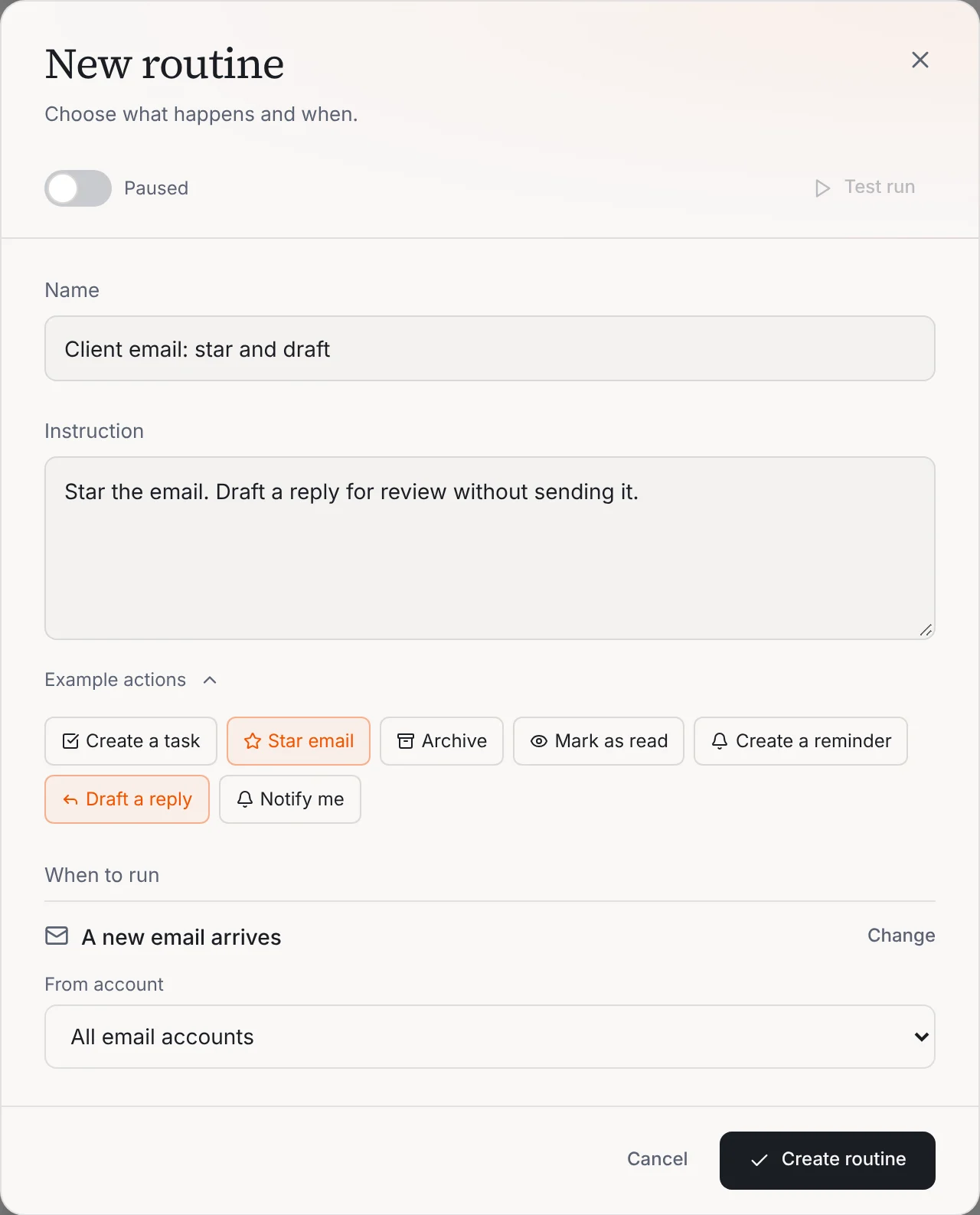
Star the email if it’s from [client name or company domain]. Draft a reply for review without sending it.
Archive the email and mark it as read if it’s a newsletter or a receipt.
Create a task titled “[email subject]” if someone is asking me to do something.
Start with one. Run it for a week. Then add the next.
Write the instruction once and your AI team does the first pass on every new email. Ask for drafts when you want to read first.
How does an AI team do the first pass?
In Operly, this is a routine. A routine is a job you write as a sentence and give a trigger. For email, the trigger is “A new email arrives.” You pick it, write what should happen, and Operly runs it each time a message comes in.
- Name it and write the instruction. The same plain English you saw above.
- Pick the trigger. “A new email arrives,” for all your connected email accounts or one of them.
- Use the example actions to get started. Operly offers chips for the common ones: Create a task, Star email, Archive, Mark as read, Create a reminder, Draft a reply and Notify me. Click one and it adds the sentence for you.
Inbox rules and drafted replies are part of both the Pro and Business plans. New to Operly? Start with how to connect Gmail and Google Calendar. Drafts your team writes in the background show up in Email, then Approvals. Your team carries out the sends you ask for, so ask for drafts when you want to read first.
What should AI never decide for you?
Draw the line before you turn anything on.
- Anything about price, a complaint, money, or a legal matter. Read it and answer it yourself.
- Bad news, or anything emotional. A draft can help you start. The words should be yours.
- Anything that sounds like a promise. Read every draft before it goes out.
Think of the routine as a very organized assistant who sorts the pile and writes a first draft. You make the calls.
How do I stay at inbox zero?
Three habits.
- Process at set times. Two or three windows a day. Outside them, the inbox can wait.
- Fix the rule, not the email. If a rule starred something it shouldn’t have, change the sentence. Don’t reopen every message by hand.
- Check once a week. Scan what was starred and what was archived. Look for one miss, and fix the sentence that caused it.
You won’t hit a perfect zero every day, and you don’t need to. A good system leaves you with a smaller set of messages that deserve a real decision.
Your next step
Pick one kind of email that wastes your time. Write one sentence for it. Set it up as a routine and see what you find in your inbox tomorrow. When you’re ready for more, see how routines work, or how Operly handles your inbox.

We build Operly, an AI team for business owners. Your chief of staff hands the work to team members who follow up, draft and organize, and you keep the decisions. About Operly · Watch the demo