To connect Gmail and Google Calendar to Operly, open Integrations, choose Google Workspace, select Connect, and approve the access Google shows you. It takes a few clicks. The part worth slowing down for is knowing what you’re approving, and how to undo it.
This post walks through the connection, what the access covers in plain words, what to try first, and how to disconnect.
How do I connect Gmail and Google Calendar?
Most guides for connecting an AI to Google are written for developers. The first step is a Google Cloud project and an OAuth token. You don’t need any of that here. It’s a normal “Sign in with Google” screen.
- Open Integrations in the sidebar.
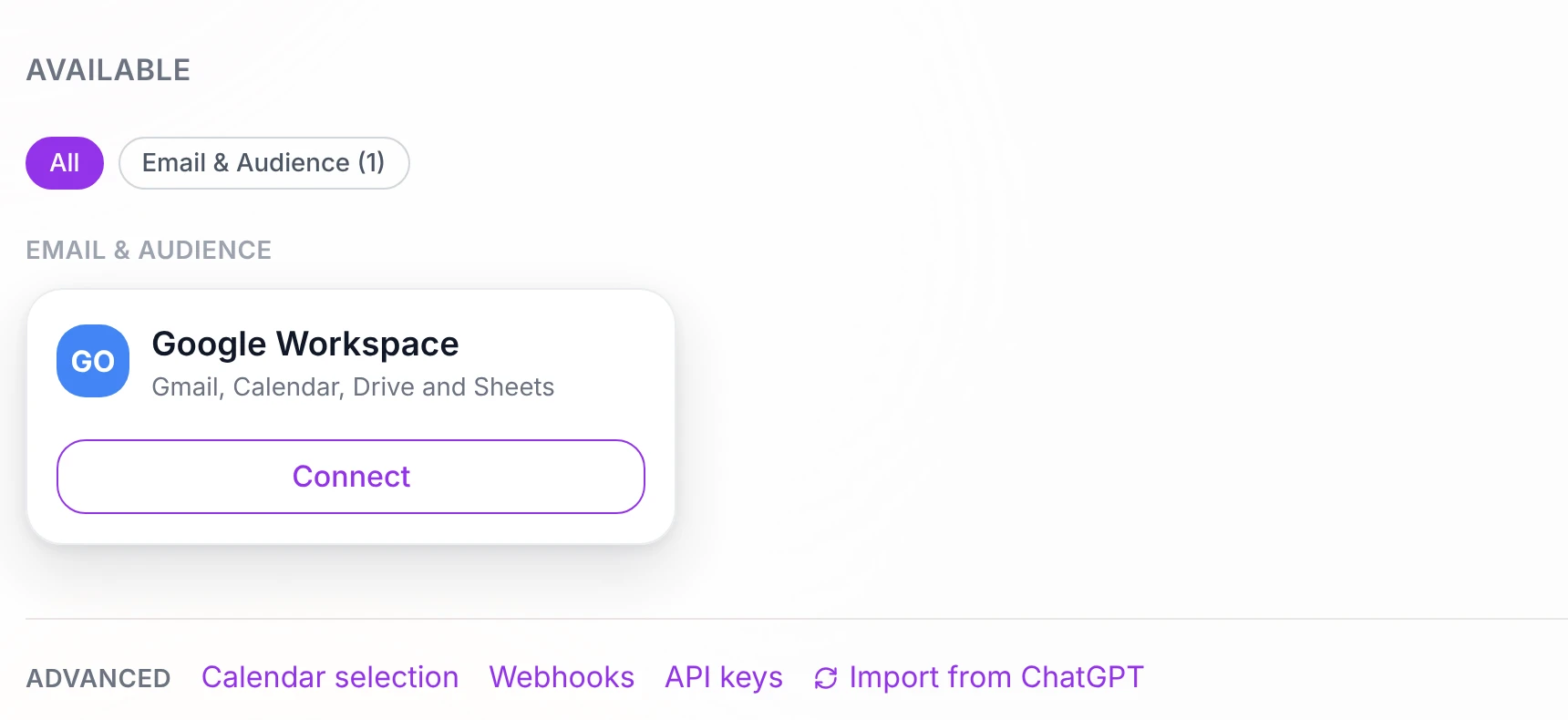
- Find Google Workspace. The card says Gmail, Calendar, Drive and Sheets. Search “google” if you don’t see it.
- Select Connect.
- Sign in to Google and pick the account you use for work. If you have several, Google asks which one.
- Read what Google lists and approve it. More on that below.
Choose the account you actually watch for work. A quiet secondary inbox makes setup look tidy and teaches you very little.
What am I actually allowing?
Google’s own help page says linked apps can only access the data and services you authorize, and that Google shows you a list before it shares anything. Read that list. Here’s what Operly’s request covers, in plain words:
- Gmail: read your mail, create drafts, send, and organize it with labels, archive and trash. It doesn’t ask to permanently delete mail.
- Calendar: view your calendars and create, edit and delete events.
- Drive: only files Operly creates or files you pick.
There isn’t a read-only version. That’s the trade: the access that lets your team prepare a reply is the access that could send one. Google also says never to share your Google password with a third-party app. You don’t need to here, because you sign in on Google’s own screen.
Whether anything gets sent without you depends on your plan. Your team carries out the sends you ask for, so ask for drafts when you want to read first.
How do I know it worked?
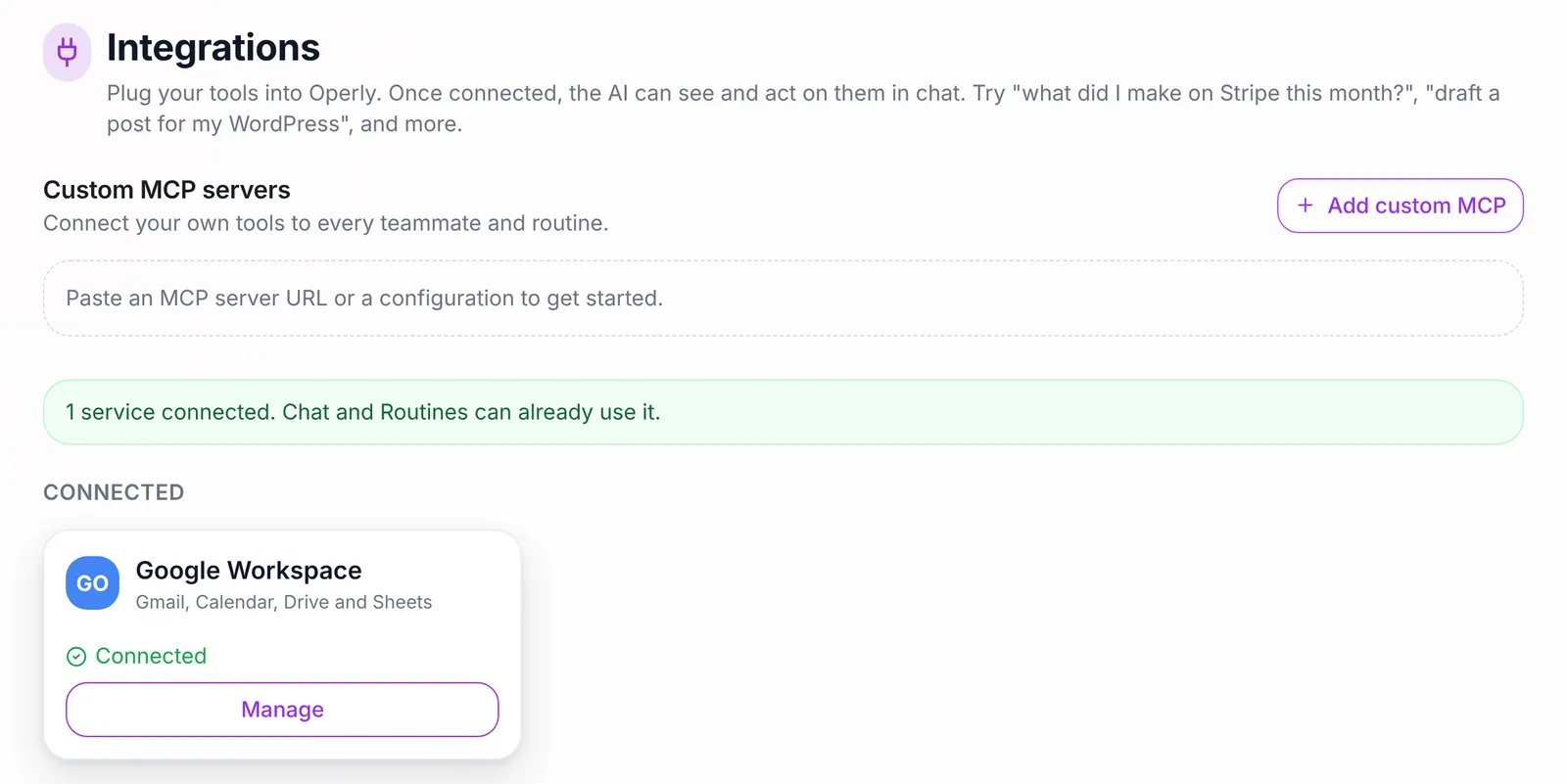
Go back to Integrations. A green note says how many services are connected and that Chat and Routines can already use them. The Google Workspace card moves under Connected with a Manage button.
Then ask your team something only your real inbox or calendar could answer, such as:
What’s on my calendar tomorrow?
Which emails from this week still need a reply?
Draft a reply to the latest email from [a real client name]. Don’t send it.
If the answers come from your real mail and events, the connection works. Ask for drafts first while you’re learning how your team writes.
Can I connect more than one account?
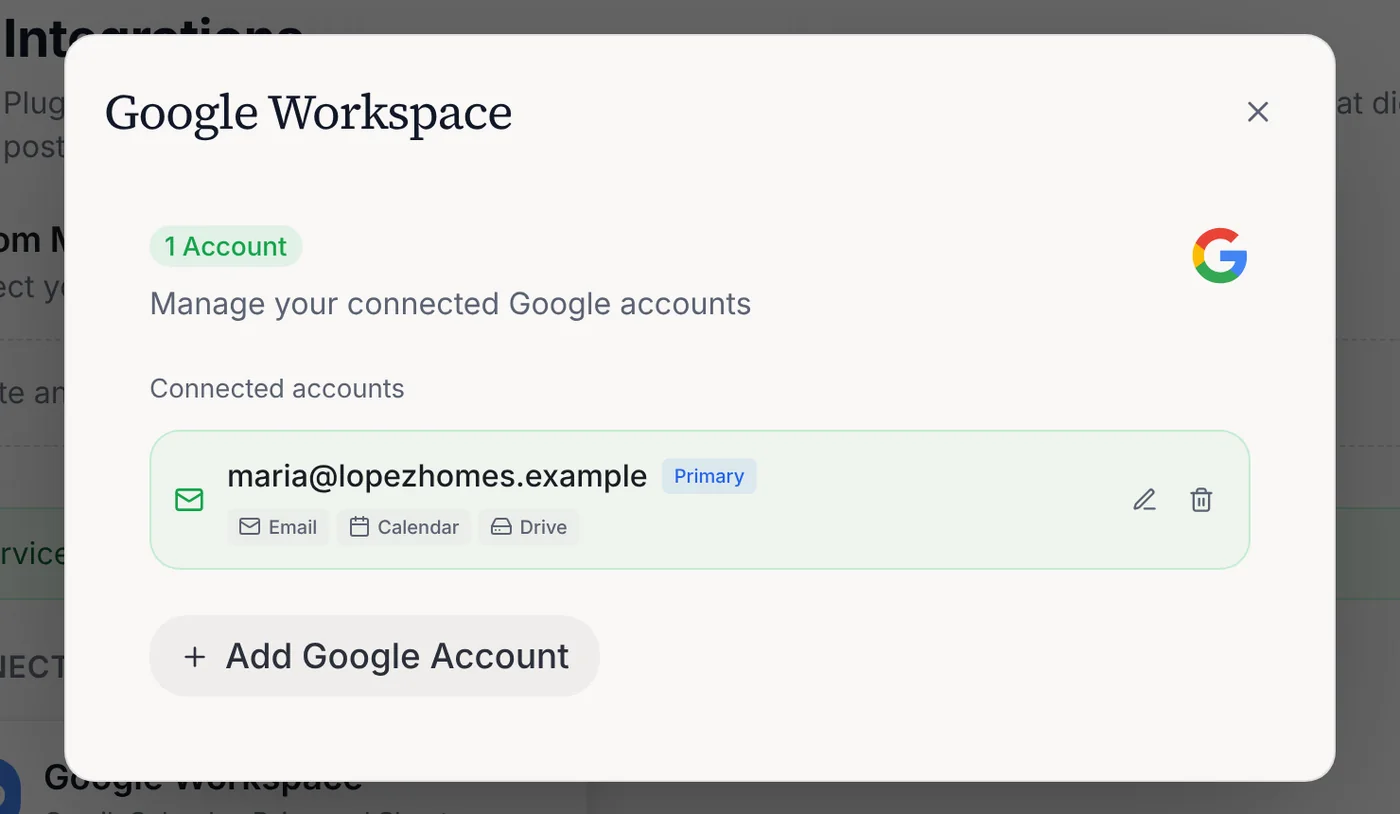
Yes. Select Manage on the Google Workspace card, then Add Google Account. Each connected account is listed with Email, Calendar and Drive labels, and one is marked Primary.
Not on Google? Under Other email accounts, Operly supports Microsoft 365, Outlook and IMAP mailboxes. Apple, Fastmail, Yahoo or a custom calendar server connect under Apple and CalDAV calendars. If you have several calendars, the Calendar selection link in Integrations lets you pick which ones to display from your connected accounts.
What should I do first once it’s connected?
Pick one route and watch it for a week.
- Email that becomes a task: how to turn emails into tasks automatically.
- A cleaner inbox: how to get to inbox zero with AI.
- A prep note when a meeting lands: how to prep for meetings automatically with AI.
- A brief before your day starts: how to automate a daily morning briefing.
Start with one mailbox and its calendar. Ask for drafts, check the results, then add a routine.
How do I disconnect?
You can disconnect any time. Go to Integrations, choose Google Workspace, select Manage, and select the trash icon next to the account.
Two things to know. First, disconnecting clears Operly’s saved sign-in for that account. It doesn’t remove drafts or chat history already in your workspace. Second, it doesn’t remove the permission on Google’s side. To do that, review your linked apps in your Google Account at myaccount.google.com/permissions. Google’s help page says you can remove a linked app’s access at any time, and that once you do, it can’t access your data anymore. It also says you may need to contact the developer to request deletion of data they already hold.
Your next step
Connect one account today. Ask the three questions above, then pick one route from the list. If something looks off, pause or disconnect from Integrations. A few correct connections beat a long list nobody understands.

We build Operly, an AI team for business owners. Your chief of staff hands the work to team members who follow up, draft and organize, and you keep the decisions. About Operly · Watch the demo