
A good morning briefing answers one question before you open your inbox: what actually matters today? The trick is that it’s already waiting for you, so you don’t have to build it.
Most mornings start the same way. You open email, check the calendar, scan the task list and try to hold it all in your head. That’s ten minutes of sorting before any real work. This post shows what to put in a briefing, three ways to build one, and wording you can copy so one arrives every morning.
What should a morning briefing include?
Less than you think. A briefing you won’t read is just another inbox.
- What’s due today, and what’s overdue. The part that costs you if you miss it.
- Today’s calendar, with a line of prep for each meeting. Who it’s with, what it’s about, what to have ready.
- Your top three priorities. Three, not ten. Picking is the point.
- Optional: emails waiting on you. Add this if your day is mostly replies.
Everything else is noise. If a section doesn’t change what you do first, cut it.
What are the ways to get a daily briefing?
Three, from ready-made to build-your-own.
- A chat assistant’s scheduled tasks. ChatGPT can run a prompt on a schedule. According to MindStudio’s explainer, that needs a paid plan, and Gmail has to be connected through ChatGPT’s integrations if you want email in the brief.
- Your email provider’s own digest. Google’s Gemini Daily Brief pulls email, calendar and tasks into a morning digest. MindStudio notes that access depends on your Workspace plan and that an admin may need to turn it on.
- Build it from connected apps. One walkthrough on the Make community forum builds a morning brief from five parts: your calendar, unread Gmail, open tasks, the weather and a news feed, merged and summarized by AI, then sent by email and Slack. It’s flexible, and you own the setup.
All three work. The trade-off is how much you want to assemble, pay for or maintain.
What’s the wording for a briefing?
Write it as a sentence. Here are three you can copy. Swap the brackets for your own details.
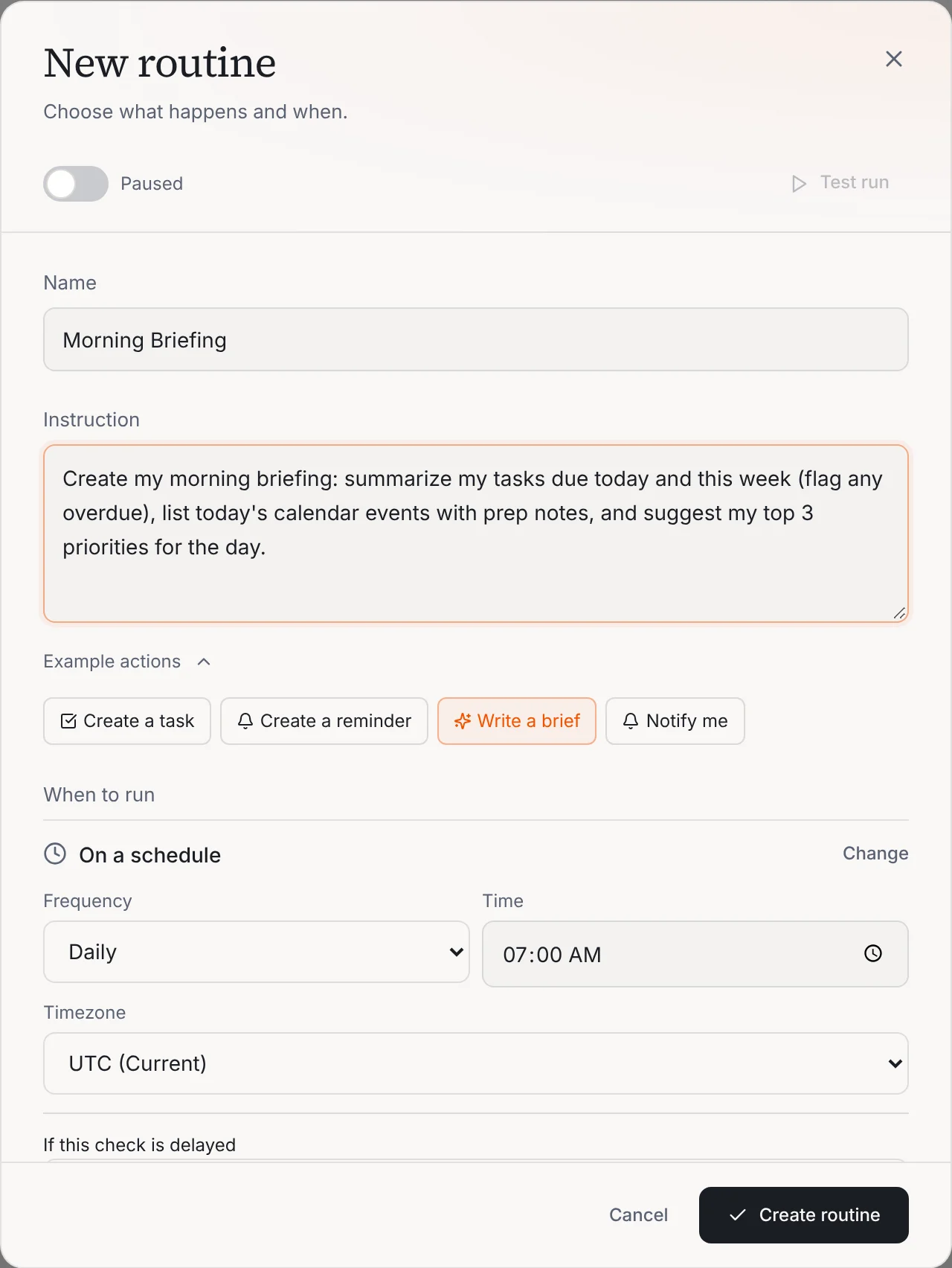
Create my morning briefing: summarize my tasks due today and this week (flag any overdue), list today’s calendar events with prep notes, and suggest my top 3 priorities for the day.
Create my morning briefing: list today’s calendar events with prep notes, tell me which emails are waiting on a reply from me and from whom, and suggest my top 3 priorities for the day.
Write a brief for the week ahead: what is due this week (flag any overdue), the meetings I have and what to prepare, and the one thing I should handle first on Monday.
Write the wording once, give it a time, and your AI team has the brief ready. You read it with your coffee.
How does this work in Operly?
In Operly, a briefing is a routine on a schedule. Operly’s own Morning Briefing is built this way: it runs daily at 7:00 in your workspace timezone and summarizes your tasks, flags what’s overdue, lists today’s calendar events with prep notes and suggests your top three priorities. It’s a brief for you to read, and nothing is sent.
New to Operly? Start with how to connect Gmail and Google Calendar, since the brief works from your real calendar and tasks. Want a deeper look at schedules and triggers? Read why you stopped using AI and how to make it stick.
How do I keep a briefing useful?
Three habits.
- Keep it to one screen. If you scroll, it’s too long. Trim the sentence.
- Read it before email. That’s the whole point. It sets the order of your day.
- Fix the sentence, not the brief. If it keeps listing things you don’t care about, change the wording. Add what you wish it had mentioned.
After a week you’ll know what belongs in it.
Is it safe to give AI my calendar and tasks?
A reasonable thing to ask before you turn it on. A briefing is a good first job because the result is something you read, not something that goes out under your name. Operly’s Morning Briefing doesn’t send anything. Start there, and add more once you see how it behaves.
Your next step
Copy Wording 1. Set it to run tomorrow at 7:00. Read it before you open email, and notice what it got right. When you’re ready for more, see how routines work, or read the inbox zero guide.

We build Operly, an AI team for business owners. Your chief of staff hands the work to team members who follow up, draft and organize, and you keep the decisions. About Operly · Watch the demo