
An automation rule is a standing instruction for your AI email assistant: when this happens, do that, every time, without you. You write it once. It handles the tenth email the same way it handled the first.
Most people don’t need fifty rules. They need five good ones. This post gives you five you can write in plain English, shows what the real screen looks like, and covers how to check that a rule is doing what you meant.
What is an AI automation rule?
It’s an if-then instruction with three parts: when it runs, what it’s allowed to do, and how you check on it.
Inbox tools have had rules for years. Google’s Gmail Help page describes filters that match your search criteria and then send mail to a label, archive it, delete it, star it, or forward it. That’s still the right tool for exact matches, like one sender or one subject line.
The gap is everything after the match. A filter can star an email. It can’t turn the request inside it into a task, or draft you a reply to read. A routine in Operly can.
Which five rules are worth setting up first?
Start with ones that are easy to check and cheap if they’re wrong. Copy the wording, then swap in your own details.
1. Star client emails. Trigger: a new email arrives. “If the email is from one of my clients, star it.”
2. Quiet the newsletters. Trigger: a new email arrives. “If the email is a newsletter or a promotion, archive it and mark it as read.”
3. Turn requests into tasks. Trigger: a new email arrives. “If the email asks me to do something, create a task titled “{{subject}}”.”
4. Draft replies for review. Trigger: a new email arrives. “If the email asks for a quote, draft a reply for review without sending it.”
5. Get a morning brief. Trigger: on a schedule, every day at 7:00. “Write a brief of what happened.”
Here’s why each one earns its place.
- Star client emails costs nothing if it’s wrong. A stray star is easy to ignore.
- Quiet the newsletters takes the noise out of the inbox. Check the first week of history so nothing important got archived.
- Turn requests into tasks keeps “I’ll do that” from living only in your head. See how to turn emails into tasks automatically.
- Draft replies for review saves the blank page. The draft waits for you until you send it.
- Get a morning brief is the easiest to trust, because it only reads and writes. See how to automate a daily morning briefing.
How do I set one up in Operly?
Open a team member’s desk and find Routines on the right. Click New routine.
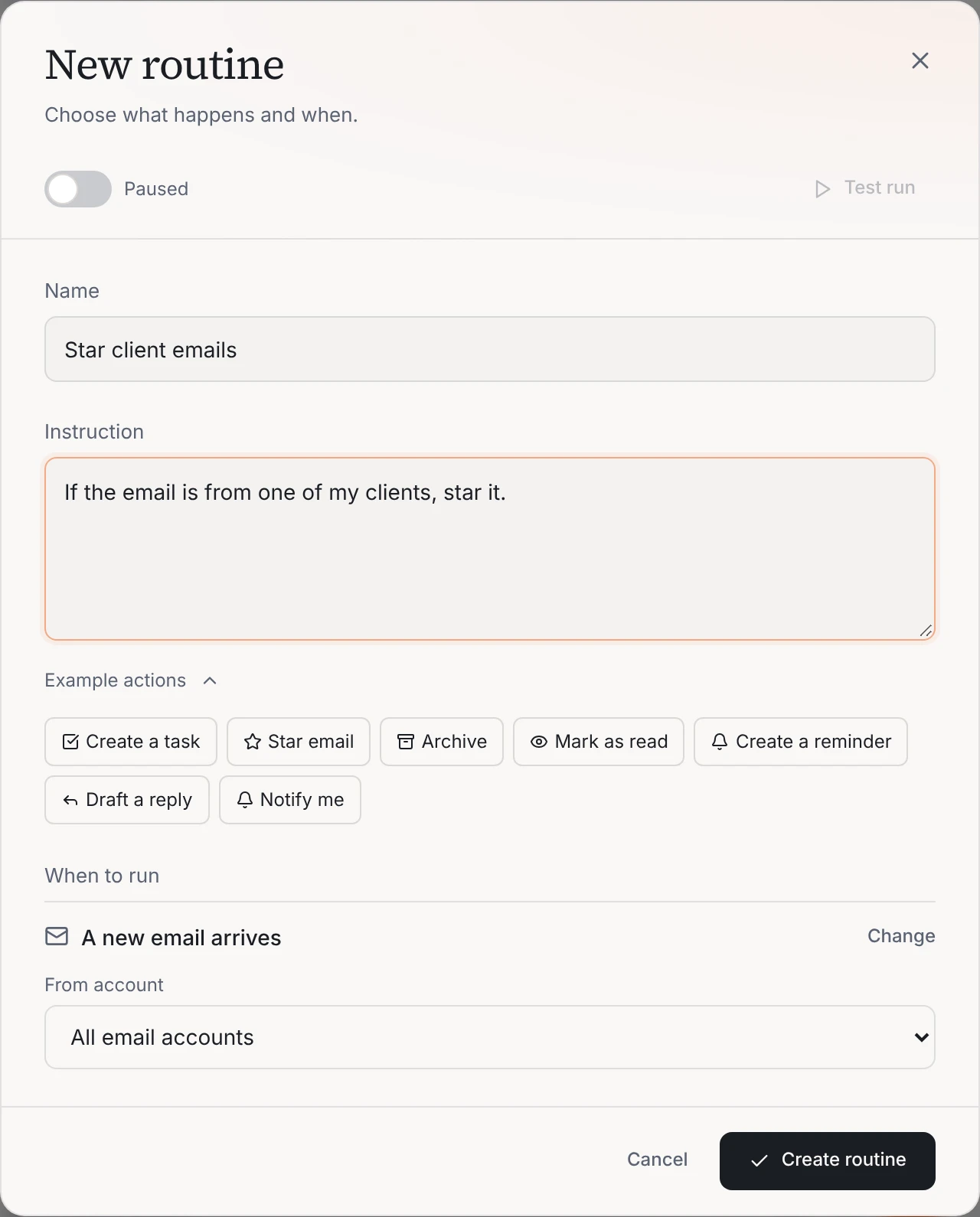
You do four things:
- Name it. Something you’ll recognize in a list.
- Write the instruction in plain English. The Example actions buttons insert phrases like Star email, Archive, Mark as read, Create a task, Create a reminder, Draft a reply and Notify me.
- Pick when it runs. Choose Add trigger, then a new email, a calendar event, or a schedule. For email, you can limit it to one account or leave it on all of them.
- Create it, then read the plan. Operly compiles your instruction into numbered steps, labeled Compiled plan. The button changes to Confirm and save. If the steps aren’t what you meant, change the instruction before you confirm.
Requests Operly can’t turn into allowed steps are refused when you save, rather than half-working later.
How do I check that a rule is doing what I meant?
You wrote the condition in words, so test it in words.
- Read the compiled plan before you confirm. It’s the list of what will happen.
- Look at run history after the first few runs. Each run shows its status, and for a brief or draft, the output.
- Pause it with the Active toggle if something looks off. Pausing doesn’t delete the rule.
- Know that failures turn it off. A rule that keeps failing is turned off with the reason shown, not left to fail quietly.
One more thing to know: email rules act on emails that arrive after you create the rule. They won’t go back through your existing inbox.
Start with starring client emails. It's the lowest-risk rule on the list, and you'll see how the plan and the history work.
When should I use a Gmail filter instead?
When the match is exact and the action is simple. A filter on one sender that applies a label is fast and doesn’t need a plan. Use a routine when the match is a judgment (“is this a request?”) or the action goes beyond labeling: a task, a reminder, a notification, a draft or a brief.
You can use both. Gmail filters do the exact sorting. Routines do the work that needs reading.
Your next step
Write rule 1 and rule 5 this week. Check the history on Friday. If the history looks right, add rule 3. Then read how to turn emails into tasks automatically for the longer version, or how to get to inbox zero with AI to see where rules fit in a full inbox routine.

We build Operly, an AI team for business owners. Your chief of staff hands the work to team members who follow up, draft and organize, and you keep the decisions. About Operly · Watch the demo