The best way to turn an email into a task is to stop doing it by hand. An email asks you for something, you think “I’ll remember that,” and by Thursday it’s gone.
Let’s be real: the request isn’t what slips. It’s the step in between, copying it from the inbox to a list. This post covers three ways to turn emails into tasks automatically, which emails deserve it, three sentences you can copy, and how it works in Operly.
What are the ways to turn an email into a task?
Three, from most manual to most automatic.
- Press a button. In Gmail, the Add to tasks button turns the open email into a Google Task. The email’s subject becomes the task name, and the task links back to the message, so you can add details and a date. It’s quick, but it’s still you, one email at a time.
- Chain some apps together. Automation tools connect your inbox to a task app. One Zapier template, for example, watches for a flagged email, tidies the subject and date, has AI write a short summary, and creates a to-do in the Things app. It works, but you’re setting up and maintaining four or five connected steps.
- Let an AI team do it where the email already is. The inbox and the task list sit in the same workspace, and a routine creates the task when mail arrives. Nothing to connect between them.
All three work. The question is how much of the middle step you still want to do yourself.
Which emails should become tasks?
Not all of them. A good rule: an email becomes a task when it asks you to do something.
- A request. “Can you send the new quote?”
- A deadline. “We need this by Friday.”
- A promise you made. “I’ll get that to you Monday.”
- A thing you’re waiting on. Worth tracking so it doesn’t go quiet.
Newsletters, receipts and FYIs shouldn’t. If everything becomes a task, the list stops meaning anything.
What does the instruction look like?
Write it as a sentence. Here are three you can copy. Swap the brackets for your own details.
If someone is asking me to do something, create a task titled “[email subject]”.
If I’m waiting on someone to send me something, create a reminder titled “[email subject]”.
If a client asks me for something, create a task titled “[email subject]”. Draft a reply for review without sending it.
Write the sentence once and your AI team creates the task when the email arrives. You read what it made.
How does this work in Operly?
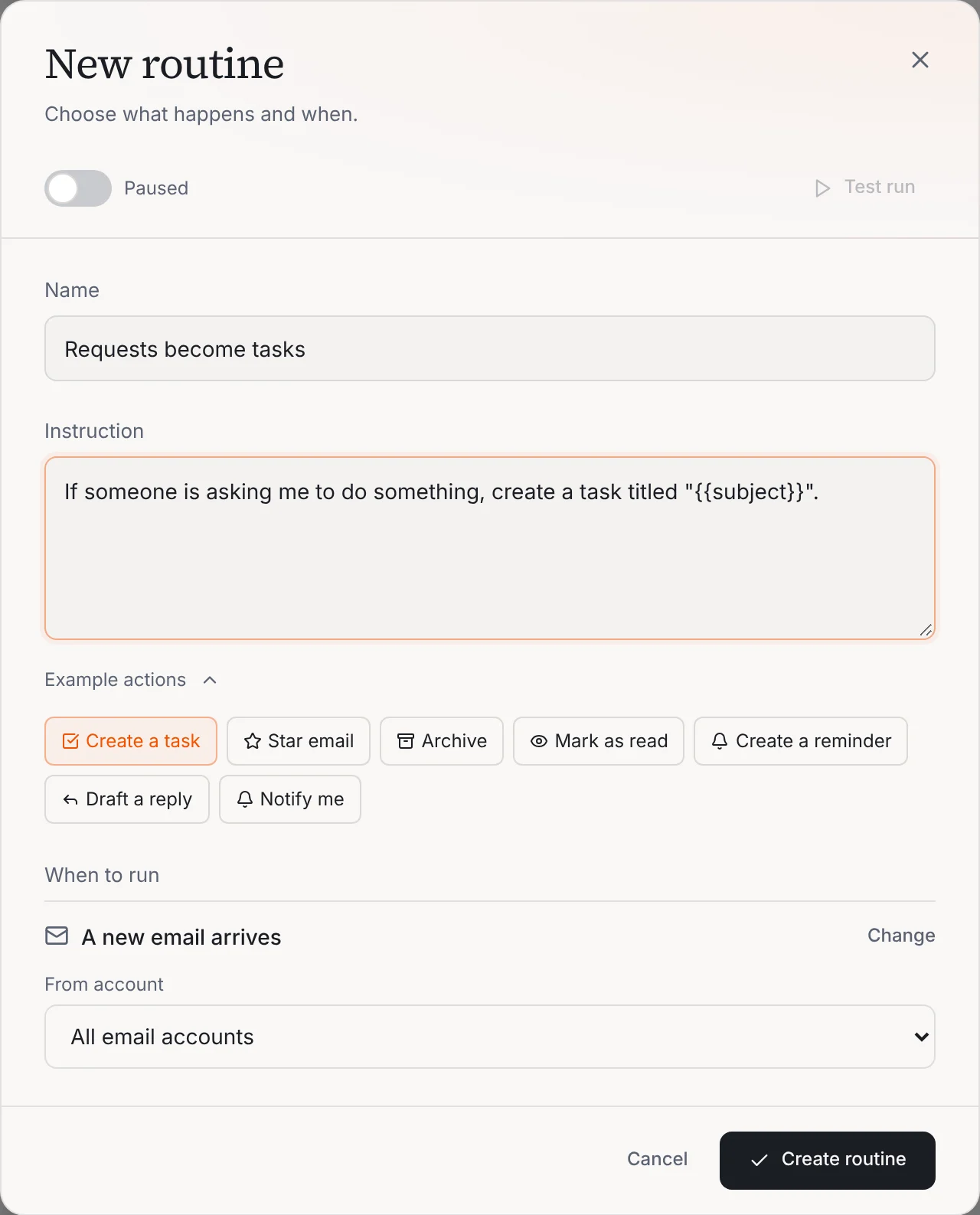
In Operly, this is a routine: a job you write as a sentence, with a trigger. For email, the trigger is “A new email arrives,” for all your connected accounts or just one. The example actions include Create a task, and the sentence it adds creates a task titled with the email’s subject.
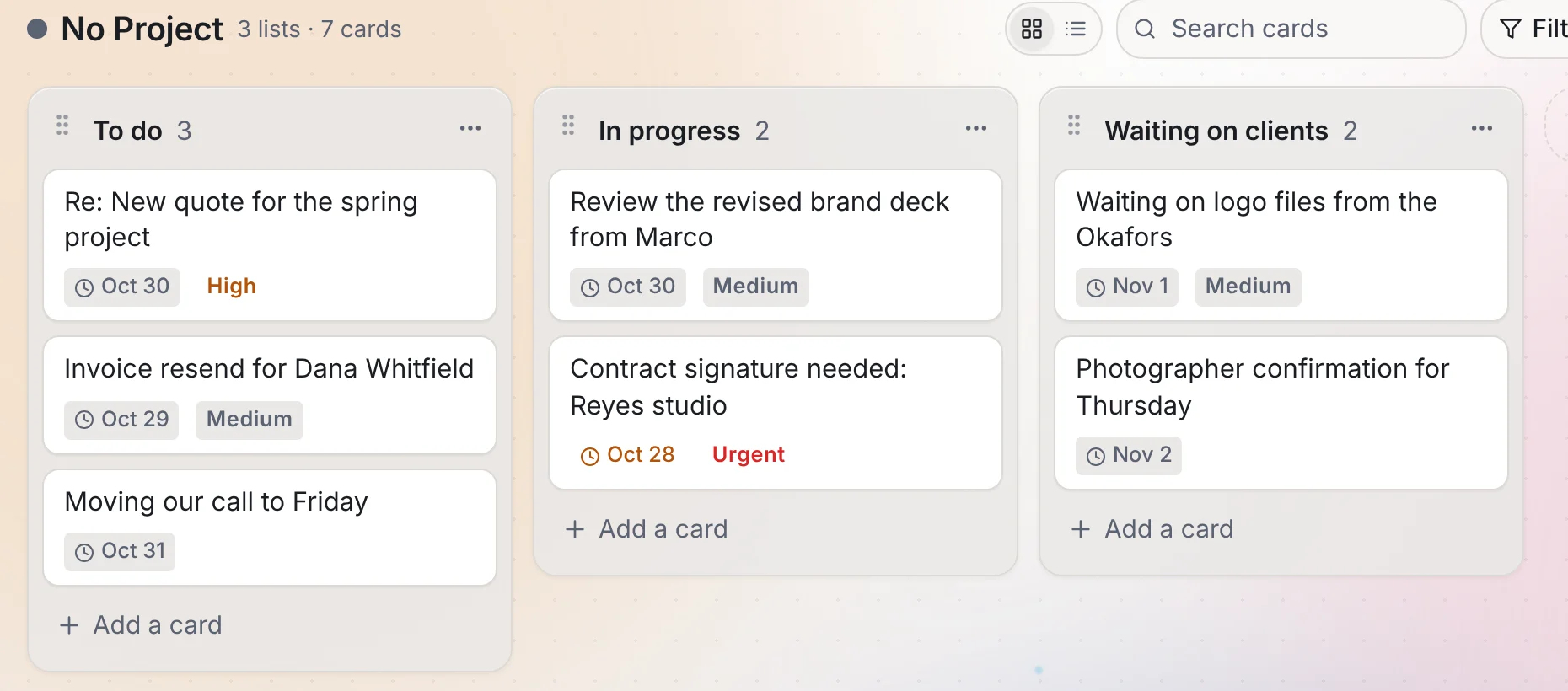
The tasks land on your Tasks board, next to everything else you’re working on. Tasks can carry a due date and a priority, and you can see both on the card.
Inbox rules and drafted replies are part of both the Pro and Business plans. New to Operly? Start with how to connect Gmail and Google Calendar. Drafts your team writes in the background show up in Email, then Approvals. Your team carries out the sends you ask for, so ask for drafts when you want to read first.
What can go wrong?
A few honest limits.
- The title is the subject. “Re: quick question” makes a bad task. If a sender is vague, so is your task.
- It can’t read your mind. The sentence decides what counts as a request. Start narrow and widen it.
- Too many tasks is its own problem. Check the board once a week and tighten the sentence if it’s creating noise.
How do I keep it useful?
Look at the board on Friday. Which tasks were real? Which were noise? Fix the sentence that caused the noise, not the tasks one by one. After a week or two, the list is something you can trust.
Your next step
Pick one kind of email that always asks you for something. Write one sentence. Set it up as a routine and see what’s on your board tomorrow. When you’re ready for more, see how routines work, or read the inbox zero guide.

We build Operly, an AI team for business owners. Your chief of staff hands the work to team members who follow up, draft and organize, and you keep the decisions. About Operly · Watch the demo