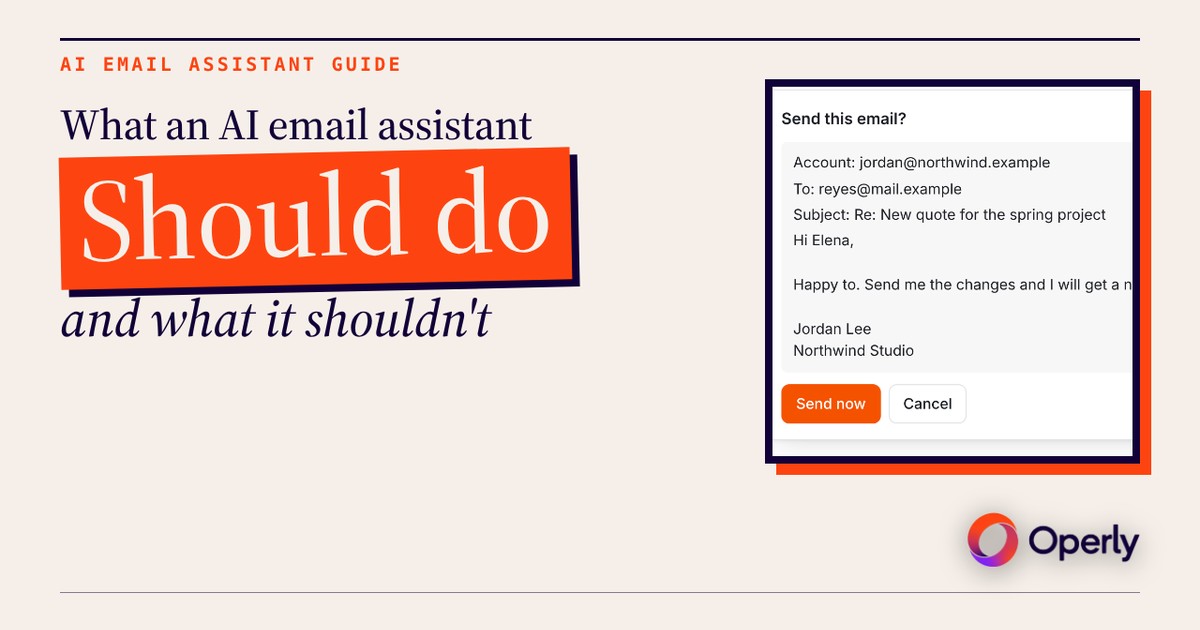
Let your AI email assistant sort, draft and turn requests into tasks. Keep the calls that cost you. That’s the whole rule. A good assistant takes the first pass at your inbox so you aren’t starting from zero. You keep the replies where a wrong word costs you money or trust.
Here’s the plain version: what to hand over first, what to keep, seven questions to ask any tool before you connect your inbox, and how Operly answers each one, with the real screens.
What is an AI email assistant?
It’s software that reads your email and helps you deal with it. Most of them fall into three kinds:
- Writes for you. It drafts replies and rewrites your messages.
- Sorts for you. It stars the important ones, archives the noise and pulls out the requests.
- Acts for you. It sends, schedules, files and creates tasks on its own.
Same label, very different risk. A tool that writes is a faster blank page. A tool that acts is making decisions in your name. Know which one you’re connecting.
What should an AI email assistant do first?
Start with jobs that are easy to check and cheap if they’re wrong.
- Sort. Star the clients you can’t miss. Archive newsletters and receipts.
- Draft for review. Let it write the reply. You read it, fix it and send it.
- Turn requests into tasks. “Can you send me the invoice?” becomes a task with a title, so it isn’t living only in your head.
- Write a brief. A short summary of what came in, on a schedule you pick.
Notice that every one of these ends with you looking at something. That’s on purpose.
What should it never do on its own?
Anything where being wrong is expensive, or where you can’t unsend it.
- Prices and quotes. One wrong number is now in writing.
- Complaints and refunds. Tone matters more than speed.
- Money, legal and contract questions. These are yours.
- Bad news. It should come from you.
- First contact with someone important. You only get one first impression.
Let the assistant draft all of these. Then you read, change and send. A draft you don’t like costs you ten seconds. A sent email you can’t take back costs a lot more.
What are seven questions to ask before you connect your inbox?
Ask these of any tool, including ours.
1. What can it read? All your mail, or only what you point it at?
2. What can it do? Read, draft, send, archive, delete?
3. Who approves a send? A card, a draft queue, or nobody?
4. What can it do while you’re away? When a rule runs on its own, what is it allowed to touch?
5. Can you see what it did? Is there a history you can read?
6. How do you turn it off and disconnect? In the tool, and at your email provider?
7. Who’s responsible when it’s wrong? Read the terms. Don’t assume.
If a tool can’t answer one of these in plain words, that’s your answer.
How does Operly answer them?
Operly is an AI team: a chief of staff and team members you give work to. Here are the same seven questions, answered from the real app. The screens use a made-up studio, Northwind Studio.
1 and 2. What can it read, and what can it do? Connect Gmail from Integrations, in the Google Workspace card. Outlook, Microsoft 365 and IMAP mailboxes connect from the Other email accounts card. The Google consent screen covers reading, drafting, sending and labeling Gmail, plus calendar events and Drive files Operly creates or you pick. There isn’t a read-only version. Once connected, your team members can read, draft, send, star, archive and label email. Our walkthrough covers the click path: how to connect Gmail and Google Calendar to Operly.
3. Who approves a send? Ask the tool, and check what it does by default.
In Operly, your team carries out the sends you ask for, so ask for drafts when you want to read first. A draft shows the account, the recipient, the subject and the full text.
Drafts your team writes in the background wait in Email, then Approvals, with Send Reply and Reject.
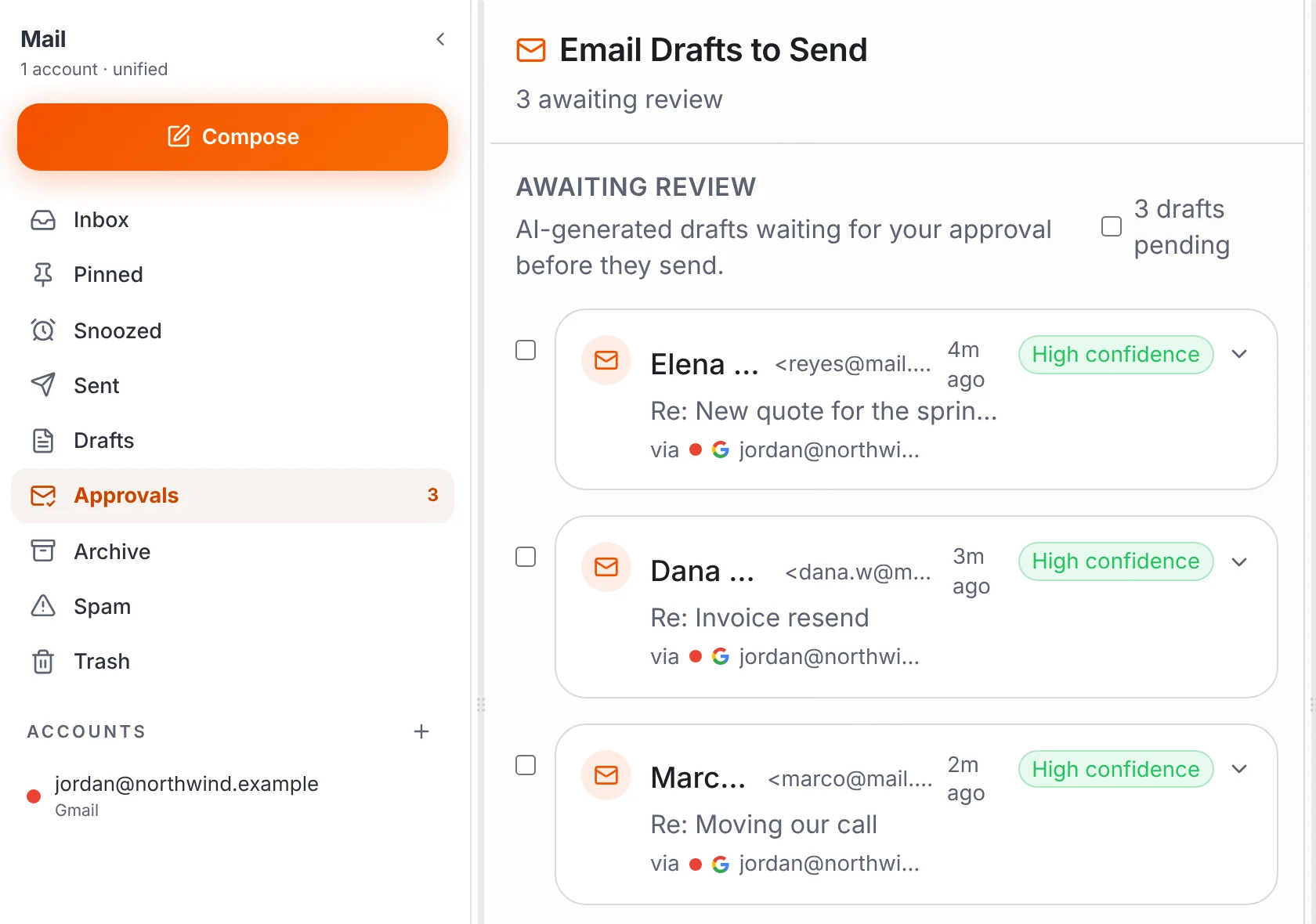
So if you want to read first, ask for a draft.
4. What can it do while you’re away? Routines. A routine is a job you write as a sentence, with a trigger such as “A new email arrives.” Open a team member’s desk, find Routines and select New routine.
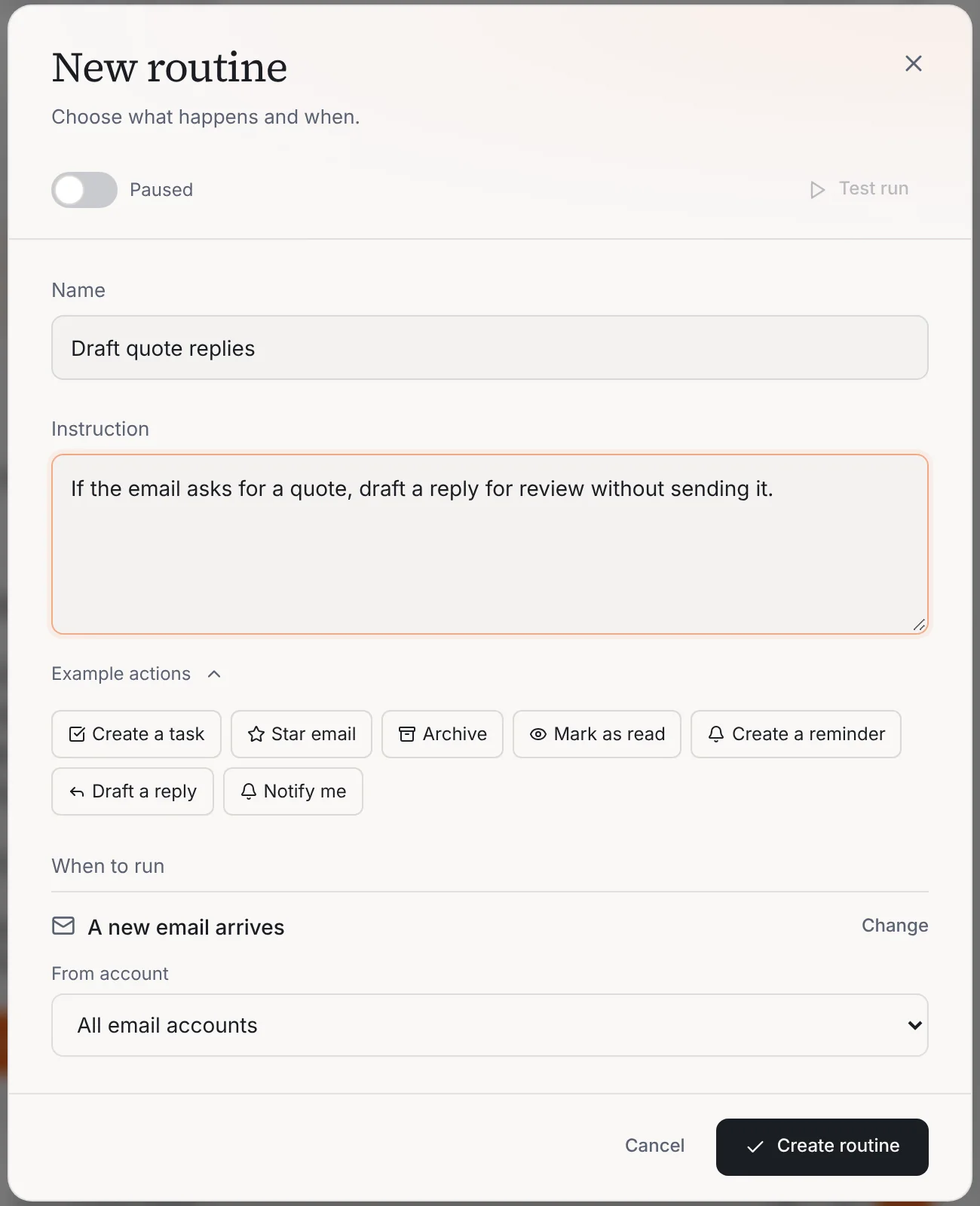
The Example actions are Create a task, Star email, Archive, Mark as read, Create a reminder, Draft a reply and Notify me. After you select Create routine, Operly shows numbered steps labeled Compiled plan and the button changes to Confirm and save. Read the steps. If they aren’t what you meant, change the sentence first. Email routines only act on mail that arrives after you create them. For five rules to start with, see AI email assistant rules.
5. Can you see what it did? Yes. Open the routine and expand Run history. Each run shows its status and, for a brief or a draft, the output. A routine that keeps failing is turned off, with the reason shown, instead of failing in silence. The Active toggle pauses a routine without deleting it.
6. How do you turn it off and disconnect? Go to Integrations, choose Google Workspace, select Manage, then select the trash icon next to the account.
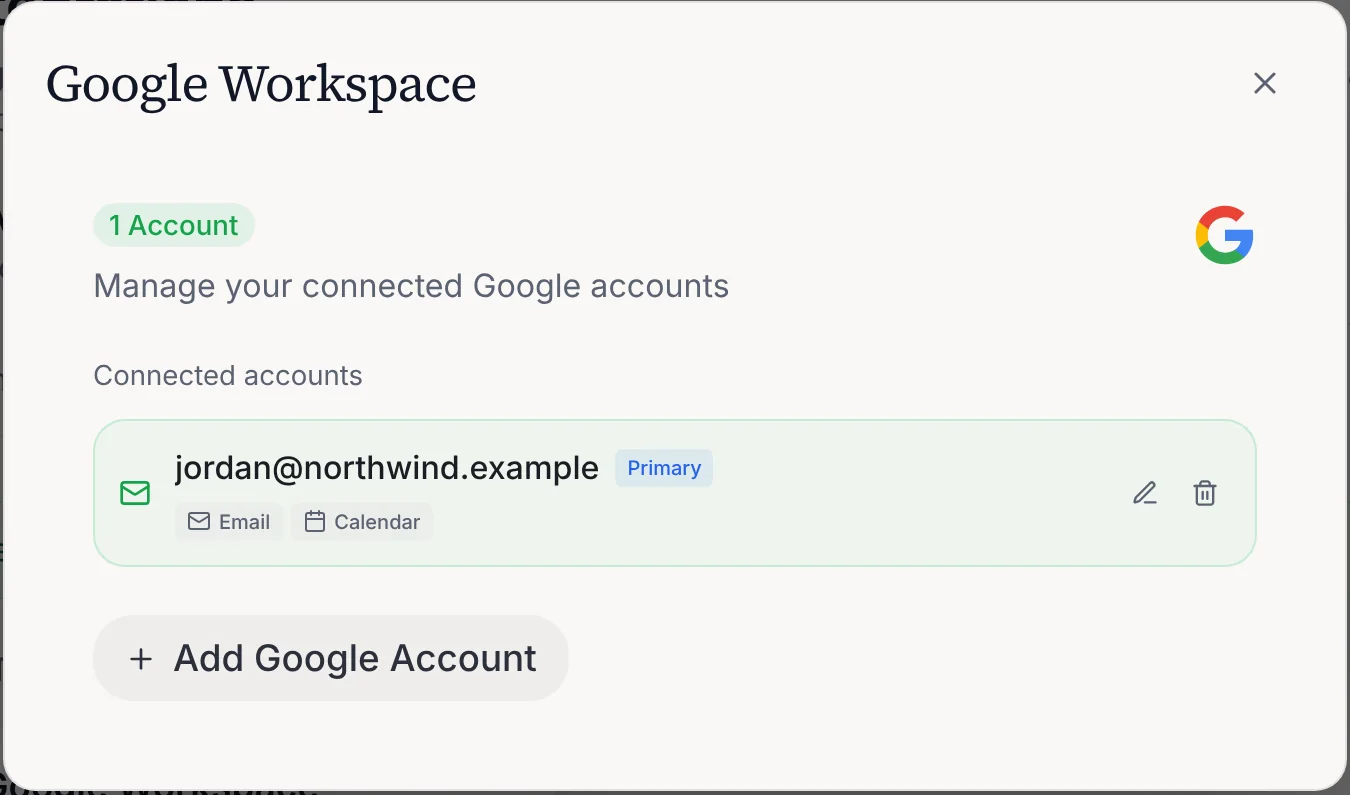
That clears Operly’s saved sign-in for that account. Drafts and chat history already in your workspace stay. It doesn’t remove the permission on Google’s side, so do that too at myaccount.google.com/permissions.
7. Who’s responsible when it’s wrong? Operly’s Terms say: “You are responsible for reviewing and verifying AI-generated content before use.” That’s why the rest of this post keeps pushing you toward drafts.
For what Operly stores and how your data is handled, read the Security page rather than a summary here.
Connect one account, then write one routine that drafts a reply for review. Read what it wrote before you trust it with more.
What should I try this week?
Pick two jobs from the first list and one from the keep list.
- Connect one account. Use the one you check most. Here’s how to connect Gmail and Google Calendar.
- Write one sorting rule. Star your clients. It costs nothing if it’s wrong.
- Write one drafting rule. Quotes and routine questions, drafted for review.
- Check Run history on Friday. Did it do what you meant? If so, add one more.
- Write down your keep list. Prices, complaints, money, legal, bad news. Those stay yours.
If you want the full inbox routine, read how to get to inbox zero with AI. The assistant does the first pass. You make the calls.

We build Operly, an AI team for business owners. Your chief of staff hands the work to team members who follow up, draft and organize, and you keep the decisions. About Operly · Watch the demo