You can ask AI questions about your own documents, and get answers from your files instead of the internet. The trick is asking in a way that lets you check the answer in ten seconds.
Your onboarding steps, your pricing sheet, a contract you signed last spring: the answers already exist. You just don’t want to scroll for them. This post covers how it works, the seven questions worth starting with, how to check what comes back, and how to do it in Operly.
What does it mean to chat with your documents?
You give an AI a file. You ask a question in plain English. It answers from what’s in the file.
The tools that sell this describe the same basic idea. Boei’s guide says you upload files such as PDFs, spreadsheets, presentations and text files, and the AI reads them and answers in natural language. Smallpdf’s version is a single PDF: drag it in, then ask for a summary, a name, a date or a figure. It also lets you reference a specific page.
Those pages are mostly about the tool. They say little about what to ask, or what to do when the answer looks off. That’s the part that decides whether you trust it.
What should I ask first?
Start with questions where the answer sits in one place in the file. Here are seven to copy. Swap the brackets for your own details.
What does this say about [late payments / cancellations / refunds]? Quote the sentence and tell me which section it’s in.
Summarize this in five bullets. Put anything with a date or a dollar amount first.
What do I need to do, and by when, according to this? List each item with the date.
Does this mention [a name, product or term]? If it doesn’t, say so.
What are the three things in this that I’m most likely to forget?
Compare this with [the other file]. What changed? List only the differences.
Write a two-line answer a client could read, using only what’s in this file.
Notice what’s in most of them: “quote the sentence,” “if it doesn’t, say so.” Those two phrases do most of the work.
How do I check the answer?
An AI can sound sure and still be wrong. A short routine keeps you safe.
- Ask for the quote. If it can quote the line and name the section, you can find it yourself.
- Check the numbers. Dates and dollar amounts are the things that cost you when they’re wrong. Look at the source.
- Ask for “not in the file.” Tell it to say when the file doesn’t answer the question, so it doesn’t fill the gap.
- Keep one question to one topic. A narrow question has a checkable answer.
Let’s be real: for anything with legal or money consequences, the file is the source and the AI is the shortcut to the right page. Read the page.
How do I do it in Operly?
There are two ways, depending on whether the file is for one question or for everything.
For one question: attach the file. Use the paperclip in the message box and pick the file. It shows as a chip above your message, and you ask your question as normal. The file is also saved in Files.

In Operly, text is read from PDF, Word, PowerPoint, Excel, RTF, plain text, Markdown, CSV, JSON, HTML and XML files, and files up to 100 MB can be attached. If a file can’t be read, you find out when you attach it, not after you’ve asked. For a file with no readable text, Operly says no readable text was found and suggests pasting the text you want reviewed or uploading a version with selectable text.
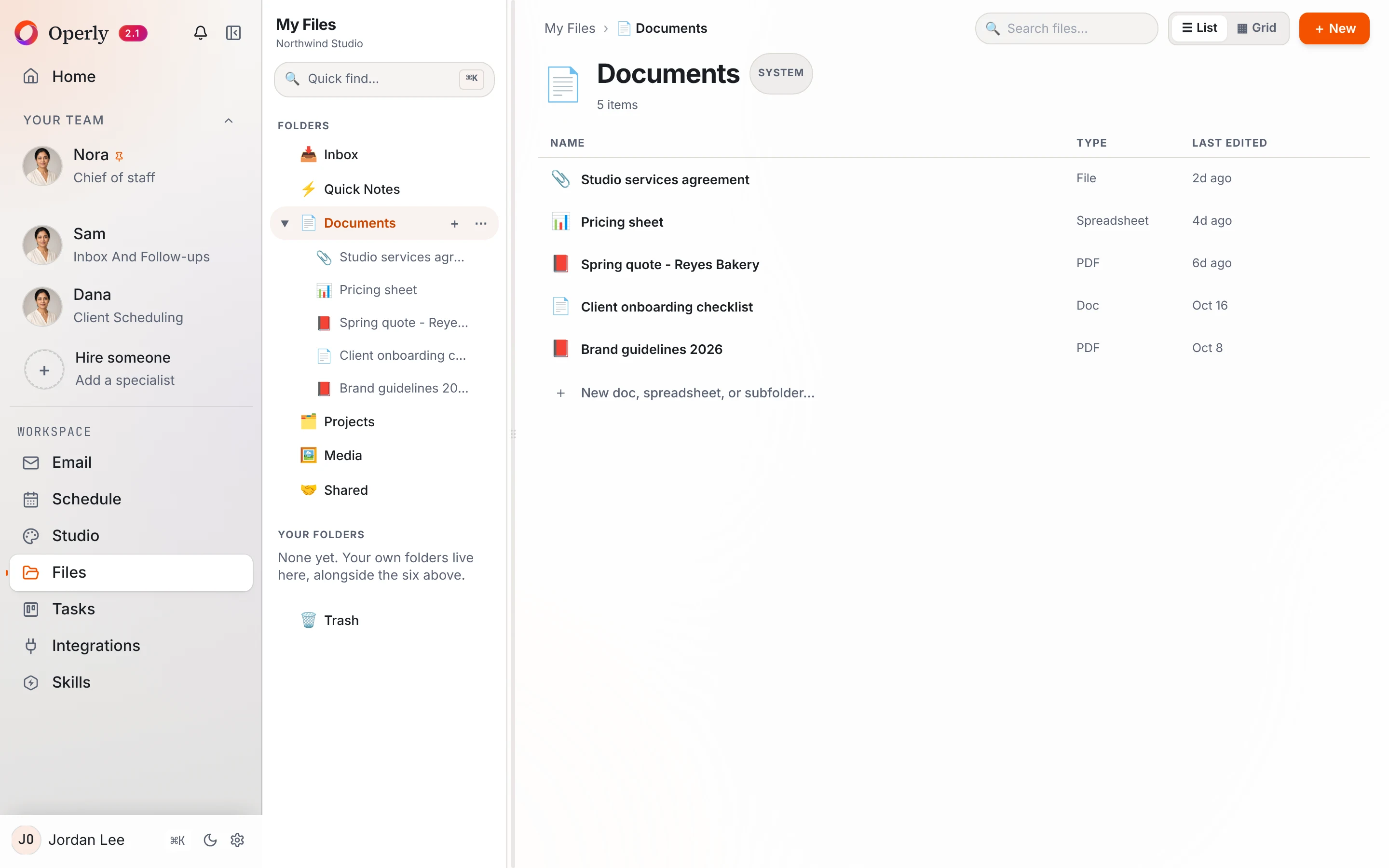
For everything: keep it in Files. The Files page holds your documents, spreadsheets and PDFs in folders, so the pricing sheet and the contract are already there the next time you need them.
For always-on context: Document Memories. If a document should shape every conversation, such as brand guidelines or a playbook, upload it in Settings, Memory under Document Memories. That’s permanent context, and it counts against a limit of 25 documents. It’s different from attaching a file to one question. For the short-list version of memory, see AI that remembers.
Your team carries out the sends you ask for, so ask for drafts when you want to read first. That matters when you ask for a reply built from a document: ask for the draft, read it against the file, then send.
Attach it, ask your question and ask for the quote. Your AI team does the finding, you do the checking.
What shouldn’t I upload?
Think before you add anything you wouldn’t want sitting in a shared drive.
- Passwords and API keys.
- Card and ID numbers.
- Files covered by a confidentiality agreement, unless you’ve checked that you’re allowed to.
Smallpdf’s page says uploaded files are deleted after one hour unless you save them to your account. Every tool has its own rules, so read the one for the tool you use before you upload anything sensitive.
Your next step
Pick one document you’ve dug through in the last month. Attach it and ask the first question on the list, with “quote the sentence” at the end. Check the quote against the file. If it holds up, you’ve just saved yourself the next search. When you’re ready for more, read what to delegate to AI first or see Memory and files.

We build Operly, an AI team for business owners. Your chief of staff hands the work to team members who follow up, draft and organize, and you keep the decisions. About Operly · Watch the demo